 Maester
 Publish a pack
A pack is a GitHub repository with a maester-pack.json, native Maester tests and, if it needs one, a connector to the service it checks. Anyone can install it from GitHub; the index lists it here once it passes the same checks Maester runs at install.
- Create the pack. Pick a test code, such asPowerShell
New-MtPack -Path ./maester-google-workspace -Id contoso.google-workspace -Code CNT -ConnectorCNT, that isn't on the codes page. The manifest'sGuididentifies the pack: when you publish, the site registers the Guid and the code to you, and they stay together for good. - Write tests and check them. PowerShell
Invoke-MtTest -Path ./maester-google-workspaceTest-MtPack ./maester-google-workspaceTest-MtPackruns every check the index runs. Code outside a function, undeclared network hosts and undeclared modules are refused or raise the pack's risk. - Push to GitHub and create a release. Make the release immutable so its cooldown starts when it is published, not when each user first sees it.
- Publish it. Sign in with GitHub on your packs as an admin of the repository, pick it and press Publish. The site checks that the repository is public, and that the Guid and code are yours or free, then queues the pack for the index. Only public repositories are listed, and a pack is listed only after its publisher has done this, even if the index found it through an install. Its status page says why a version is not listed, with the fix.
What gets a pack listed
A valid pack
A manifest Maester accepts, test IDs MP.<code>.<n>, and at least one test or a connector, in a public repository.
A release
A tagged release in the repository itself. Forks and commits from other repositories are refused.
An established owner
A GitHub account older than 30 days, and at most one new pack listed a day.
Risk levels
Text files only, and every scan passed.
Findings a reviewer should read: dynamic code, starting processes, write scopes.
Compiled code, or modules the user installs that cannot be pinned.
Banner image
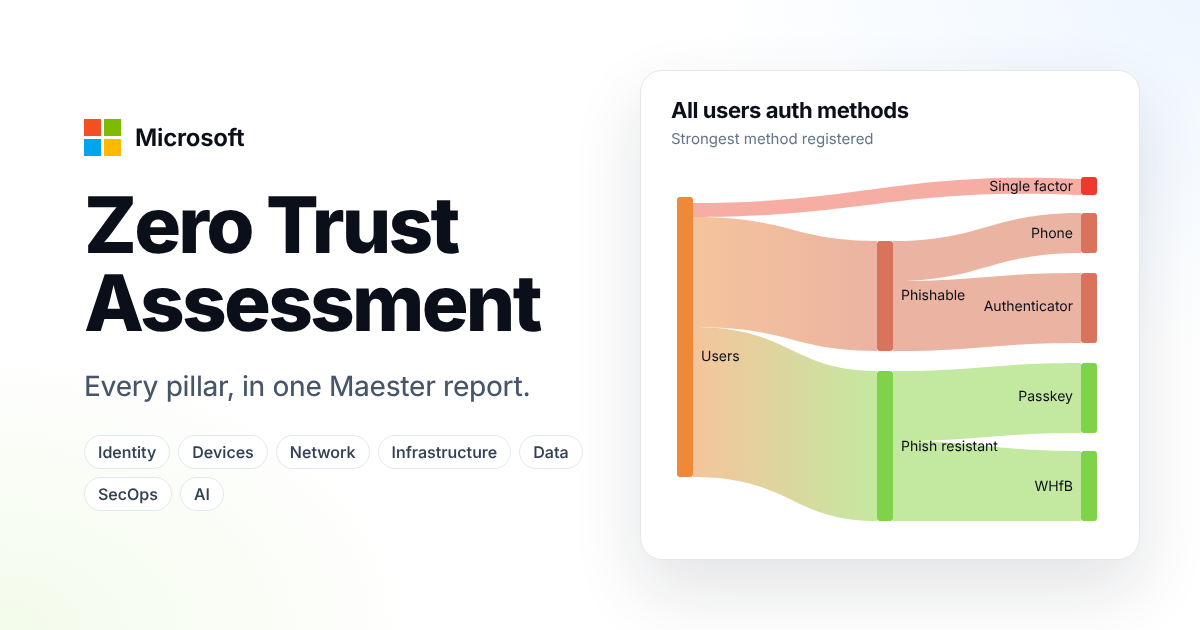
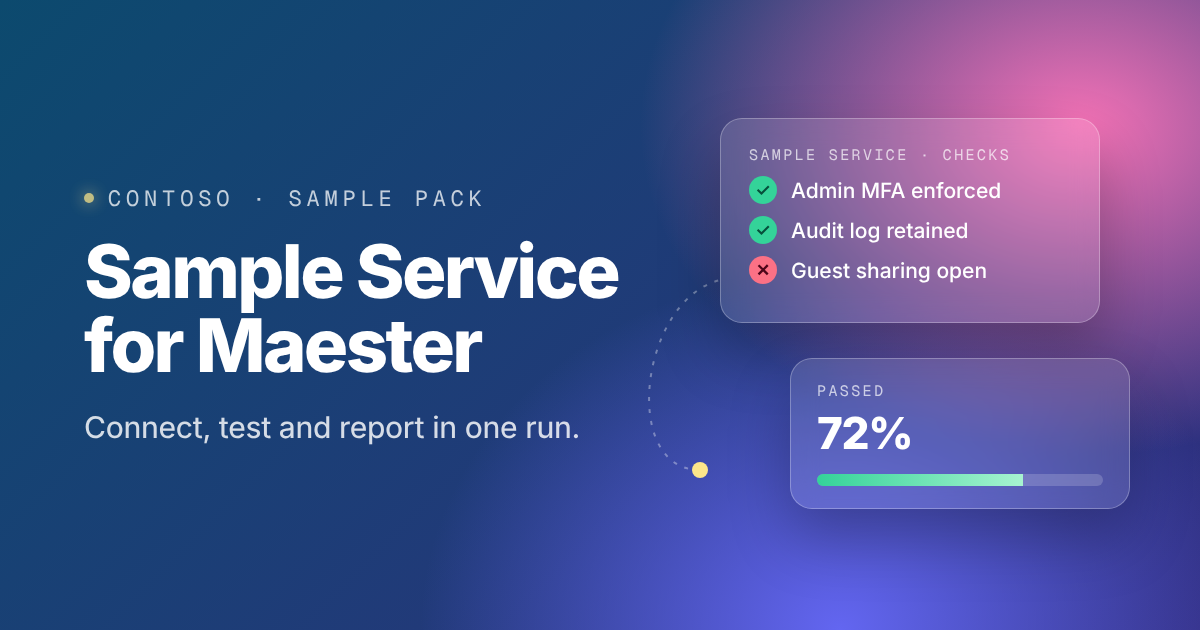
Optional. When a pack is featured on the home page, its card shows the banner. Add the image to the pack and name it in the manifest: "Banner": "assets/banner.png".
The file
PNG, JPEG or WebP, at most 1 MB, 1200 × 630 pixels. Other sizes are cropped to that shape. SVG is refused.
Readable small
It is shown about 600 pixels wide, 340 on a phone. Use at most eight words, set large, away from the edges.
Your brand, or theirs with permission
Another company's logo only for a pack built on its product, with its permission. No "Official" or "Verified", and no real tenant data in screenshots.
Make one with an AI image tool
Fill in the parts in angle brackets and paste the prompt into any image tool. Image tools often misspell words, so check every letter. For an image without text, replace the Text: line with No text at all; leave the left half plain for a title. and add the title yourself.
A wide banner image, 1200 x 630 pixels, for a software add-on called "<pack name>".It checks the security settings of <service, for example Google Workspace> for IT administrators.Style: clean, modern, flat illustration on a <dark navy / deep teal / near-black> gradient background, with a simple abstract motif suggesting <what the pack checks, for example identity, email, devices>.Text: the title "<pack name>" in large, bold, white sans-serif letters on the left, and the line "<one short phrase, at most six words>" below it in smaller letters.Leave a margin of at least 60 pixels on every side. No other text, no logos, no people, no photos of screens, no badges or seals.The full guide is at maester.dev/docs/packs/writing-a-pack.